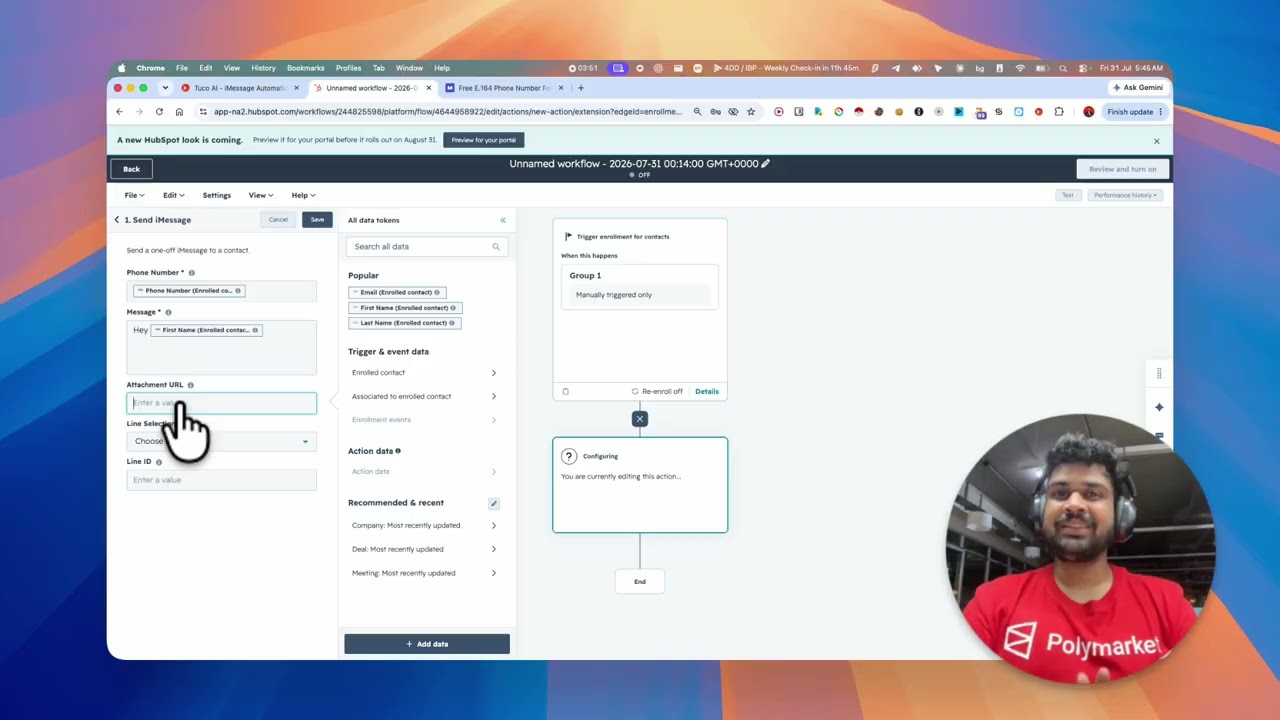
Automate iMessage with n8n: the full build
The longest and most complete of the tutorials. It starts from vocabulary — what a node is, what a webhook is, what an API key is, why phone numbers have to be in E.164 — and ends with a published workflow that sends a three-step cadence and hands replies back to an AI agent. If you have never built an automation before, start here.
What you will be able to do
- Import the published n8n template and wire your own Tuco API key into it
- Validate a phone number and branch before you spend a send on a junk lead
- Check iMessage availability, create the lead, then send a plain-text opener
- Attach a voice note on the follow-up and use Skip If Replied correctly
- Choose between the SMS fallback and your own check-iMessage branch — not both
- Point the reply webhook (or ai.draft) at n8n so answers come back into the workflow
Chapters
Timestamps open YouTube at that moment. 13 sections across 42:55.
- 0:00
Vocabulary first
Workflows, nodes, webhooks, API keys, workspaces, and the E.164 phone format. Skip ahead if these are already familiar.
- 3:49
Import the template
Download the JSON from the templates page and import it into n8n from the three-dot menu.
- 5:53
The inbound webhook
POST rather than GET so the body can carry JSON, and the difference between n8n’s test URL and its production URL.
- 7:23
Map the lead fields
Drag first name, last name and phone out of the webhook output so every run picks up that run’s lead.
- 9:07
Validate the phone number
Branch on whether the number is real E.164. A junk number exits here instead of burning a send.
- 10:53
Create the API key
Integrations → API keys in the Tuco dashboard, then bearer auth in n8n. The key is shown once and is scoped to one workspace.
- 14:22
Check iMessage, then create the lead
The availability check feeds a true/false branch; the true branch creates the lead in Tuco and hands back a lead ID.
- 19:39
Send the first text
Plain text, with the lead ID from the previous node and an optional from-line ID when the workspace has more than one line.
- 24:57
Apple’s hard rules
50 new contacts per line per day, no clickable links until they reply, and no attachments on the very first message.
- 26:41
Voice note on the follow-up
Upload an MP3, confirm the URL loads in incognito, set voiceNote true so it renders as a waveform, and set Skip If Replied.
- 32:00
Fallback or your own branch
Either let Tuco fall back to SMS through your configured provider, or branch yourself on the check-iMessage node. Pick one.
- 32:46
Receiving replies
Create the reply webhook in Tuco, point it at n8n, and swap the test URL for the production URL before you publish.
- 38:01
AI agent modes
Manual listens for the reply event; Copilot listens for ai.draft and needs a website or a custom answer configured. Never both.