GoHighLevel white-label install: Tuco as a Custom Conversation Provider
Written for agencies running their own branded GoHighLevel instance. It spends the first two minutes on the decision that actually matters — Custom Conversation Provider or default provider — and then walks the whole install, including the bit where GoHighLevel hides its own "create private integration" button.
What you will be able to do
- Decide between the Custom Conversation Provider and the default provider, and know what each one breaks
- Get a white-labeled install URL issued for your agency
- Create the private integration and recover when GoHighLevel hides the button
- Install one sub-account at a time and confirm it in App Marketplace → Installed Apps
- Branch a workflow on iMessage availability and send under your own app name
Chapters
Timestamps open YouTube at that moment. 17 sections across 20:50.
- 0:00
What a white-label install is
Tuco appears inside your branded platform under your own app name rather than ours.
- 0:22
Custom vs default provider
Custom keeps Tuco as its own channel alongside your A2P SMS. Default routes Tuco through the SMS channel so third-party setters like CloseBot can still read the thread.
- 1:59
One sub-account at a time
Switch into the workspace you are installing, and expect to repeat the install per sub-account.
- 2:23
Integrations → CRM → Lead Connector
Lead Connector is GoHighLevel’s own white-label name. That is the tile you want.
- 2:54
Where the white-label URL comes from
Support issues the branded install URL per agency; everyone else uses the default one on screen.
- 4:11
Private integration and scopes
Settings → Private Integrations, name it, select every scope. The scopes are what make the two-way sync work.
- 4:45
When GoHighLevel hides the button
Hard refresh, log out and back in, or unhide the element in inspector. A GoHighLevel quirk, not a Tuco one.
- 7:17
Location ID and check scopes
Settings → Business Profile for the location ID, then Check Scopes before connecting.
- 7:56
Install, do not click Finish
Copy the API key, click Install Lead Connector rather than Finish, and install into a single sub-account.
- 9:30
Confirm the install
App Marketplace → Installed Apps should show your app. If it does not, reinstall.
- 9:52
Build the workflow
Trigger, then the Check iMessage action searched under your white-label app name.
- 11:35
Branch on availability
True goes out over iMessage through Tuco, false falls through to your existing A2P SMS number.
- 12:37
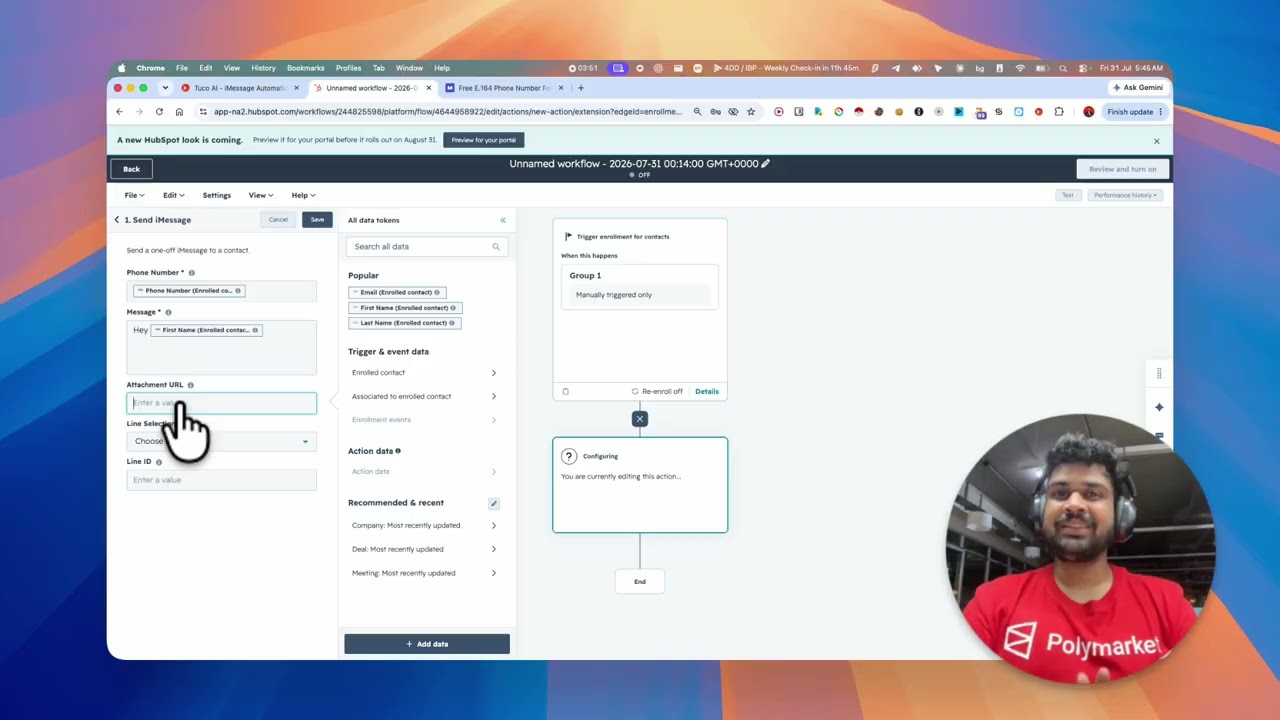
Send iMessage
Message body with contact variables, the sending line ID when the workspace has several lines, and what Skip If Replied actually does.
- 15:02
The cadence he recommends
Plain text, wait, voice note, wait, one more text. Links do not open until the recipient has replied.
- 16:04
Getting the voice note URL
Record, download the MP3, upload under Leads → Upload Audio, then confirm the URL plays in incognito.
- 18:16
Publish and test
Run the workflow against a sample contact and watch the messages land in Conversations.
- 19:44
Debugging with execution logs
The builder view shows the design, execution logs show the path each contact actually took.