Reply to leads from Slack.
Every lead conversation is a Slack thread.
Connect a channel and Tuco posts each lead conversation there as its own thread. Reply in the thread and Tuco texts the lead from the same number they have been talking to. Their replies come back to the same thread.
Last updated:
One thread per lead.
Each conversation gets its own thread in the channel you pick, so the whole team sees it.
Type, and it texts.
Your reply goes out from the lead’s line. A status under it shows Sending, Sent, then Delivered.
#tuco-leads
A lead replies. You answer in the thread.
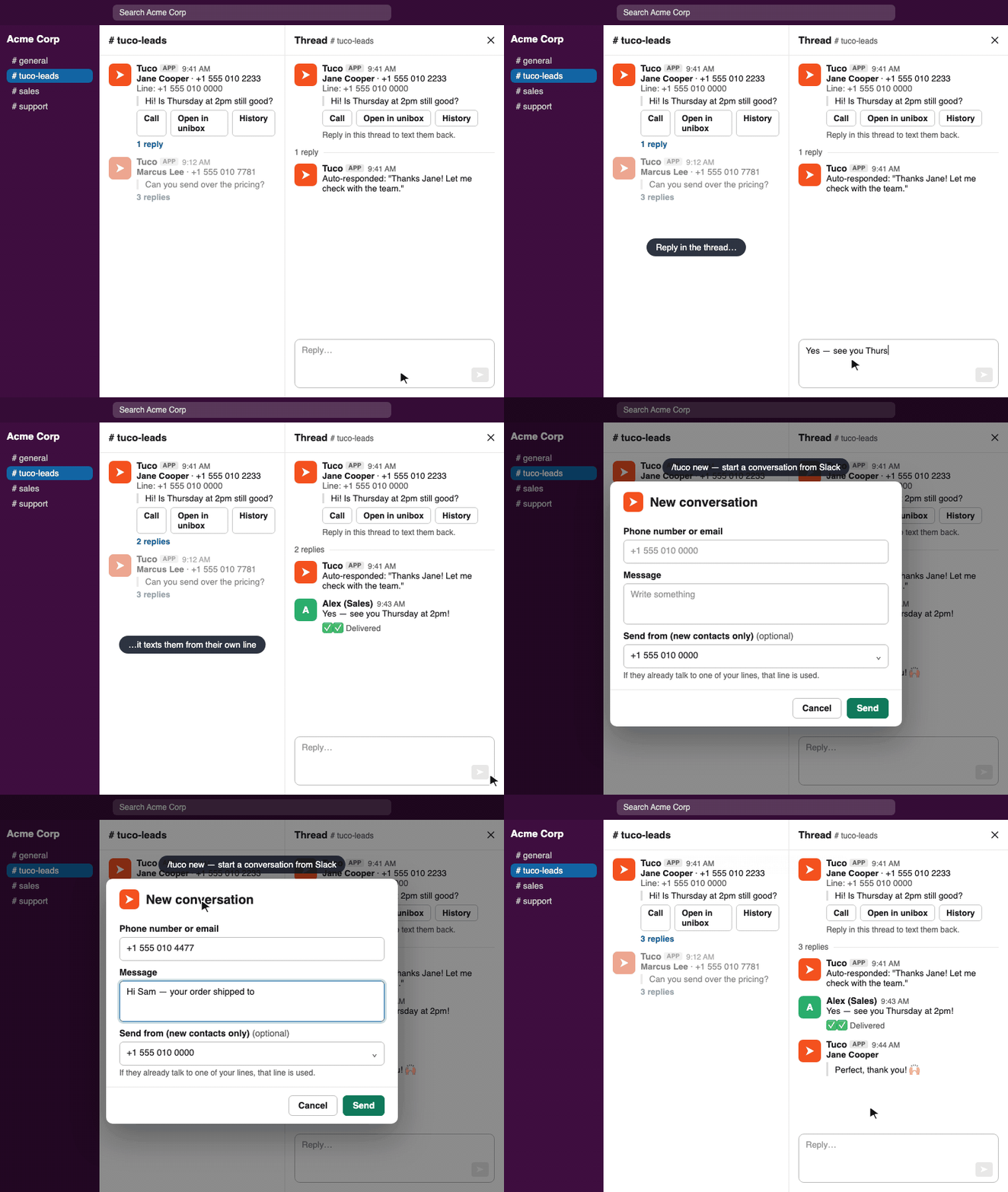
Replies, sends from Tuco and AI replies all land in the same thread.
The lead hears back from the number they have been texting, not a new one.
Their attachments show up in Slack. Yours go out with your reply. A Slack audio clip goes as a voice note.
Text someone new without leaving Slack.
Work the inbox where the team already is.
Anything you type in a lead’s thread is texted to the lead from that conversation’s line. Anyone in the channel can jump in.
A status line under your reply updates from Sending to Sent to Delivered, so nobody has to open Tuco to check.
Inbound photos, PDFs and voice notes are posted into the thread. Attach a file to your reply to send it to the lead.
When the AI copilot drafts a reply it appears in the thread with Send and Edit buttons. Typing your own reply discards it.
Every lead message carries buttons to call the lead, open the conversation in Unibox, or pull up the recent history.
Messages sent from Unibox, sequences, the API or the AI agent are posted in the lead’s thread, so Slack always has the whole conversation.
Workflow
Two minutes to set up.
Connect once per workspace.
Open Integrations → Slack.
In the Tuco app, go to Integrations and open the Slack tab.
Add to Slack.
Approve the Tuco app for your Slack workspace.
Pick a channel.
Choose the channel where lead conversations should appear.
Reply from Slack.
New conversations show up as threads. Reply in a thread to text the lead.
Related
Pair it with.
Answer leads without leaving Slack.
Slack is where your team already talks. Now it is where they text leads back too.